Table of contents
Open Table of contents
Overview
Credit / Source: Alex Nguyen (@alexcooldev) on X
This is why I target US users instead of local users simply put, users in my country have an extremely low payment conversion rate from apps, while the US and other developed countries have a much higher rate. That’s what motivated me to share this with those of you who are stuck not knowing how to target US users on TikTok just like I was two years ago. And this playbook is completely free and is not sponsored by anyone lol.
Step 1: Factory Reset the iPhone
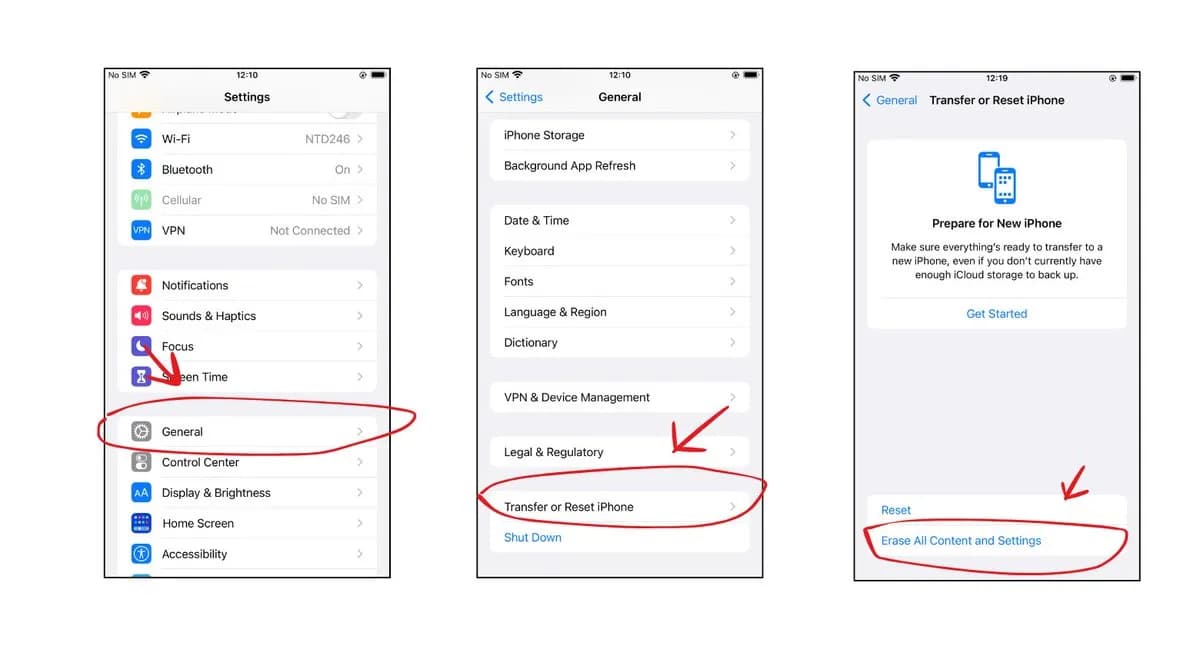
Before setting up any iPhone for use in a TikTok farm, you need to ensure the device is in a completely clean state. A factory reset wipes all previous data, accounts, settings, cached location info, and residual app configurations giving you a blank slate that won’t carry over any digital fingerprints from prior usage.
Why this matters
TikTok’s detection systems analyze device-level signals including previously associated accounts, cached GPS data, leftover cookies, old Apple ID metadata, and residual network configurations. A phone that hasn’t been fully wiped may still carry traces of its previous owner’s activity, geographic history, or account associations, all of which can flag your new account as suspicious or link it to banned/shadowbanned profiles.
How to perform the reset
- Open Settings on the iPhone.
- Navigate to General → Transfer or Reset iPhone.
- Tap Erase All Content and Settings.
- The phone will ask you to enter your passcode (if one is set) and confirm the action.
- If the device is signed into an Apple ID, you’ll need to enter the Apple ID password to disable Find My iPhone and remove the Activation Lock. Make sure you have access to the credentials before starting.
- The iPhone will begin the erase process. This typically takes 5–15 minutes depending on the device model and storage size.
- Once complete, the phone will reboot and display the “Hello” setup screen just like a brand new device out of the box.
Step 2: Set Language and Region
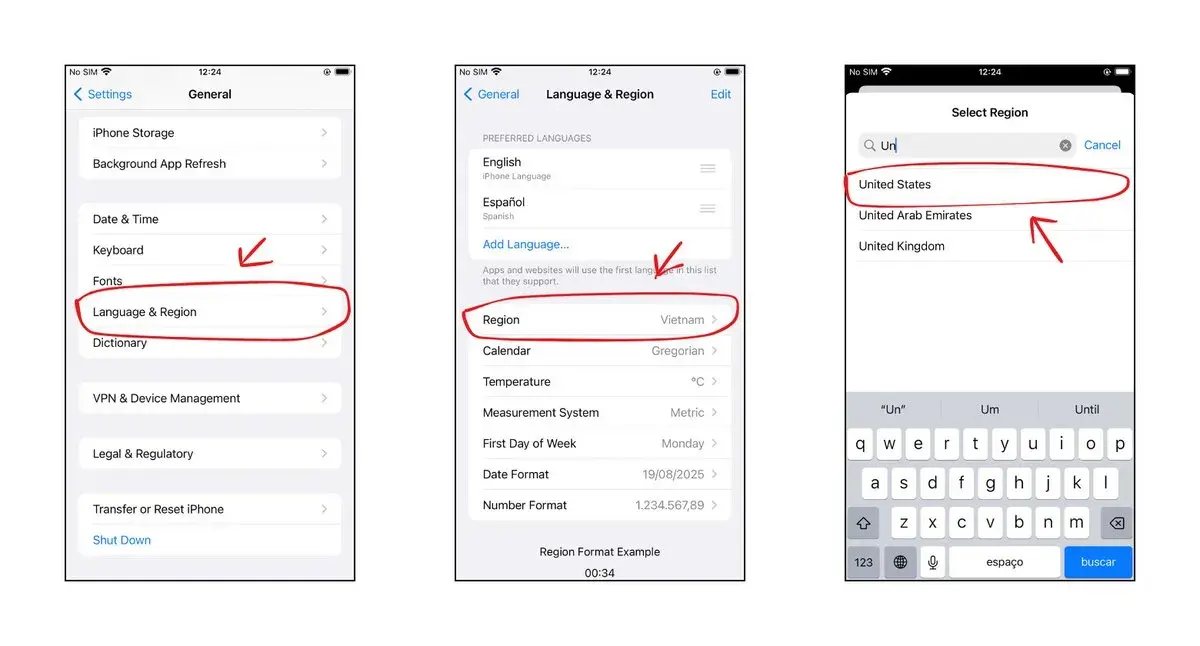
Right after the iPhone reboots to the “Hello” screen, you’ll be asked to choose a language and country/region. These aren’t just display preferences, they directly affect how the device behaves and how TikTok categorizes your account.
How to do it
- On the “Hello” screen, swipe up to start the setup process.
- Select the language of your target country. For example: English for the US market, Português (Brasil) for Brazil.
- Next, select the matching country/region, e.g., United States, United Kingdom, Brazil, etc.
Why it matters
- App Store: The region you choose determines which country’s App Store you’re connected to. TikTok can detect which regional App Store your device uses, and this becomes a signal for determining your account’s market.
- Device behavior: Language and region affect default keyboard, date/time format, currency, and auto-correct all of which contribute to the device fingerprint that TikTok can read.
- Consistency: These settings must align with your VPN/proxy IP, SIM card, and time zone. Any mismatch between these signals can trigger detection.
Keep in mind
- Choose carefully the list is long and easy to misclick (e.g., “United States” vs. “United States Minor Outlying Islands”).
- If running multiple iPhones targeting the same country, keep this setting identical across all devices. If targeting different countries, each phone’s settings must match its intended market.
Step 3: Create a New iCloud Account
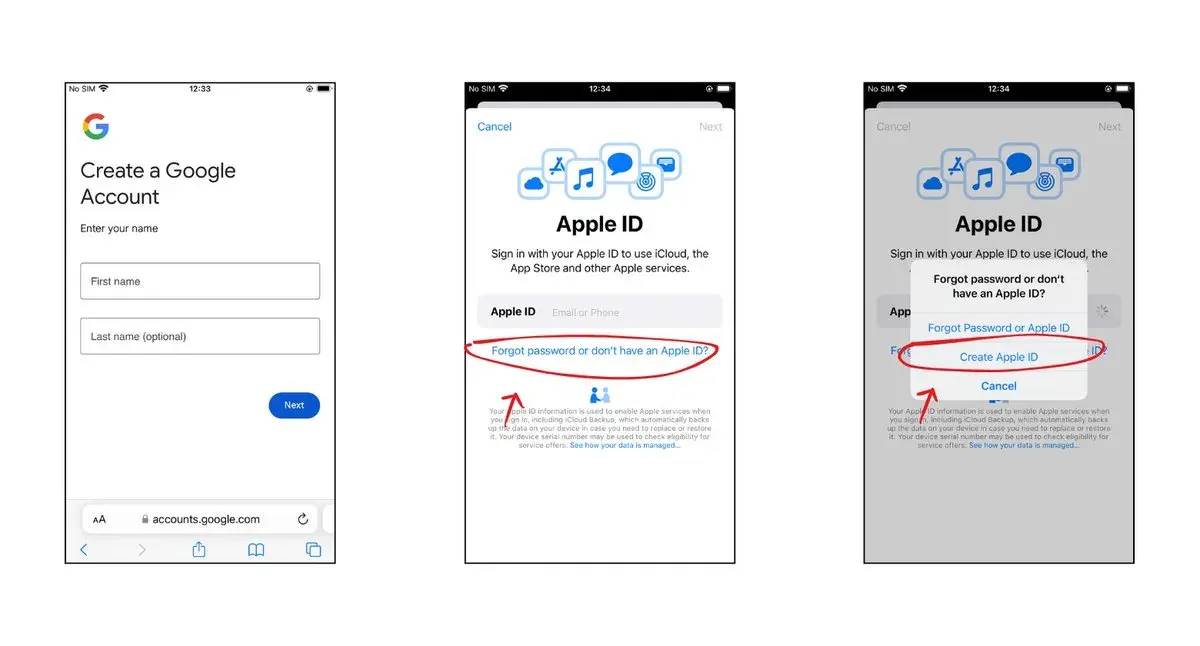
Before signing into the iPhone with an Apple ID, you need to create a completely fresh iCloud account. Using an old or previously used Apple ID will carry over data associations and device history, which can compromise the clean fingerprint you established in Steps 1 and 2.
First, create a fresh email
- During the iPhone setup wizard, when prompted to sign in with an Apple ID, tap “Forgot password or don’t have an Apple ID?” → “Create a Free Apple ID”, or skip this step for now and open Safari once you reach the home screen.
- Go to mail.google.com and create a brand new Gmail account.
- Use Gmail specifically, other email providers (Outlook, Yahoo, ProtonMail, etc.) carry a significantly higher risk of your TikTok account getting flagged or banned. Gmail is the safest and most widely accepted option.
- Don’t reuse any personal information from your real accounts. Use a fresh name, and avoid patterns that link back to your other emails.
Then, create the Apple ID
- Go to Settings → Sign in to your iPhone (or if you skipped during setup, it will be at the top of Settings).
- Tap “Don’t have an Apple ID or forgot it?” → Create Apple ID.
- Use the fresh Gmail you just created as the Apple ID email.
- Set the name, date of birth, and country to match your target region, keep everything consistent with the language and region you chose in Step 2.
- Complete the verification process (Apple will send a verification code to your new Gmail).
Why avoid old Apple IDs
- Apple IDs carry history, previously linked devices, past purchases, location data, and associated phone numbers. Signing in with an old Apple ID essentially undoes the clean slate from your factory reset.
- TikTok and other apps can access certain device-level metadata tied to the Apple ID. A recycled Apple ID may link your new farm phone to previously flagged or banned accounts.
- One fresh Apple ID per device is the safest approach. Don’t share the same Apple ID across multiple farm phones.
Step 4: Set App Store Region to Target Country
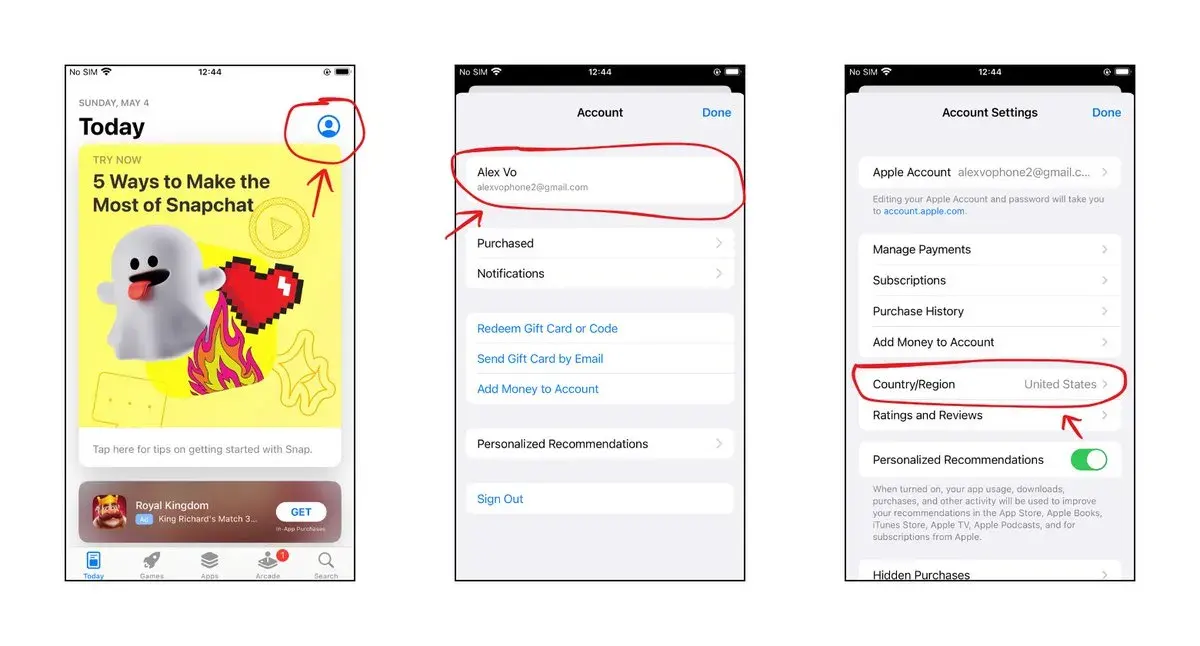
Even though you already selected a region during the initial setup in Step 2, the App Store region is a separate setting tied to your Apple ID. You need to make sure this also matches your target country so that you download the correct regional version of apps, especially TikTok, which can have different builds and content policies depending on the market.
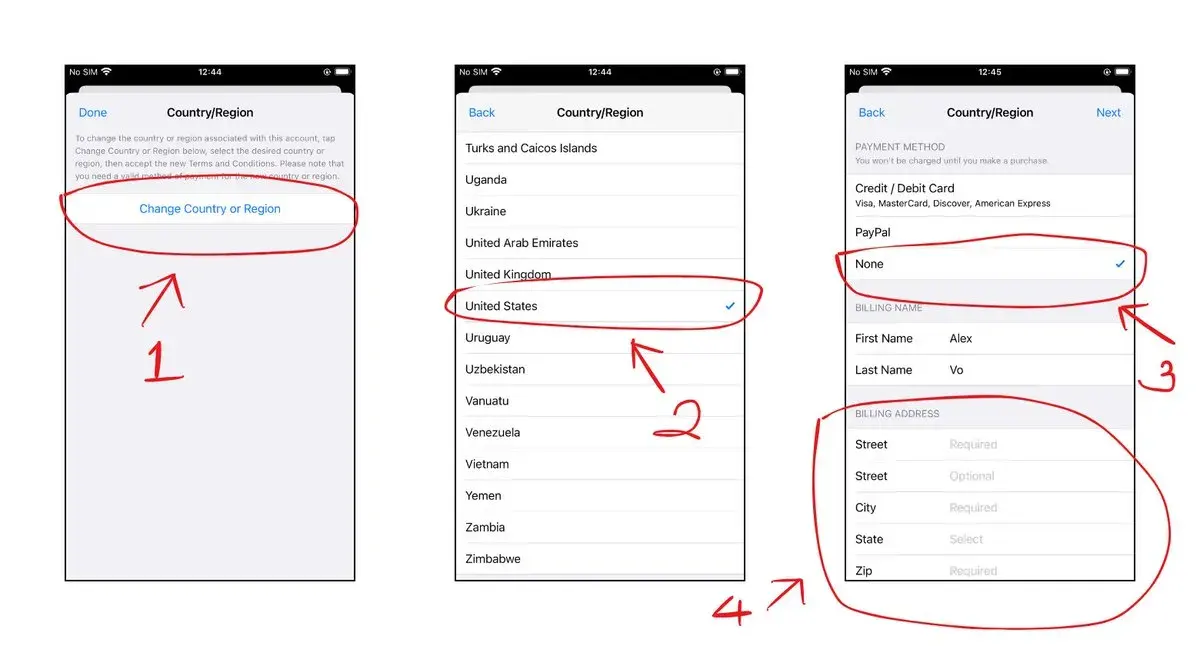
How to do it
- Go to Settings → [Your Name] (Apple ID) at the top of the screen.
- Tap Media & Purchases → View Account (you may be asked to sign in again).
- Tap Country/Region → Change Country or Region.
- Select your target country from the list (e.g., United States).
- Apple will ask you to agree to new terms and conditions, then prompt you to enter a payment method, billing address, and phone number for that country.
Filling in the address and phone number
Since you’re not physically in the target country, you’ll need a valid-looking address and phone number to complete this step:
- Address: Use a virtual or generated US address (or whichever country you’re targeting). You can ask ChatGPT to generate a realistic random address, or use free address generators online. Make sure the zip code, city, and state all match, Apple validates that these are consistent.
- Phone number: Use a random phone number with the correct country code and area code. Again, ChatGPT can generate one, or you can use any valid-format number. Apple doesn’t call or verify this number during the region change.
- Payment method: Select None if the option is available. If Apple requires a payment method, you may need a virtual card or gift card from the target country.
Why this matters
- The App Store region determines which version of TikTok you download. Some countries have different app versions, different content moderation rules, and different feature rollouts.
- TikTok can detect the App Store region associated with your device. If your App Store says Vietnam but everything else says United States, that’s an inconsistency that adds risk.
- This setting must stay consistent with your language, device region, IP address, and SIM, all signals should point to the same country.
Step 5: Install and Configure VPN/Proxy
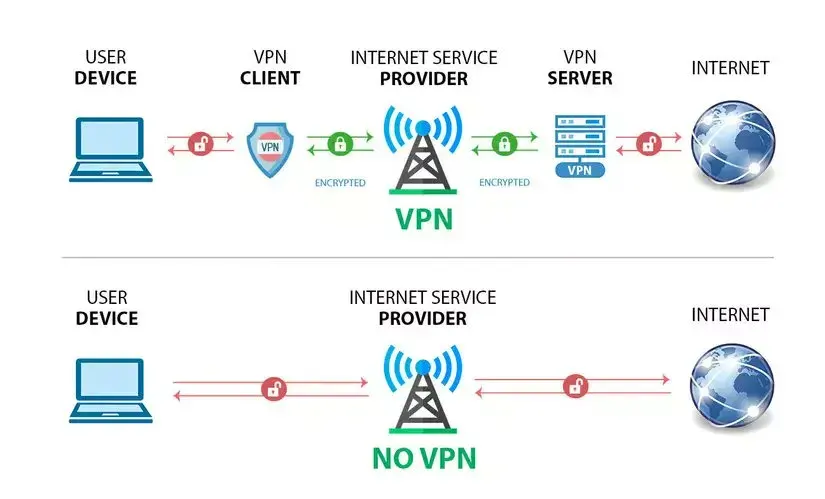
With the device fully set up and the App Store region configured, you now need to install a VPN or proxy to make sure your internet traffic comes from an IP address in your target country. This is one of the most critical steps a wrong choice here can undo all the work from the previous steps.
Choosing a VPN/Proxy
I won’t recommend any specific VPN or proxy provider here because the market changes quickly and what works today might not work tomorrow. Do your own research and testing. However, there are key principles you must follow:
- Use a paid service: Free VPNs are out of the question for TikTok farming. They use shared IP pools that thousands of people connect through many of whom are also running automation or spam. These IPs get flagged and blacklisted fast.
- Use a dedicated/static IP: This is the most important factor. A dedicated IP means you’re the only person using that address. When you share an IP with hundreds of other users (which is what most cheap VPNs offer), all it takes is one bad actor on that same IP to get the entire address blacklisted by TikTok. Once that happens, every account connecting from that IP including yours gets shadowbanned or restricted.
- Avoid cheap or unknown providers: If a VPN or proxy service seems too good to be true for the price, it probably is. Low-cost providers cut corners by recycling and overcrowding their IP pools, which is exactly what you’re trying to avoid.
What happens if you choose poorly
- Shadowban: TikTok silently limits your content’s reach. Your videos get zero or near-zero views, and you won’t receive any notification that something is wrong. This is the most common consequence of using a dirty or shared IP.
- Account ban: In worse cases, TikTok may outright ban your account, especially if the IP you’re using is already associated with known spam or automation activity.
- Device ID ban: In the most severe cases, TikTok can flag your device itself not just the account or the IP. This means even if you switch to a different VPN, create a new account, or do another factory reset, TikTok may still recognize and block that specific phone. This is rare, but it does happen, and when it does, the device becomes essentially unusable for TikTok.
Bottom line
The VPN/proxy is the foundation of your geo-spoofing setup. Every other signal language, region, App Store, SIM only works if the IP address backs them up. Invest in a quality, dedicated IP service and treat it as a non-negotiable cost of running a phone farm.
Step 6: Create TikTok Accounts
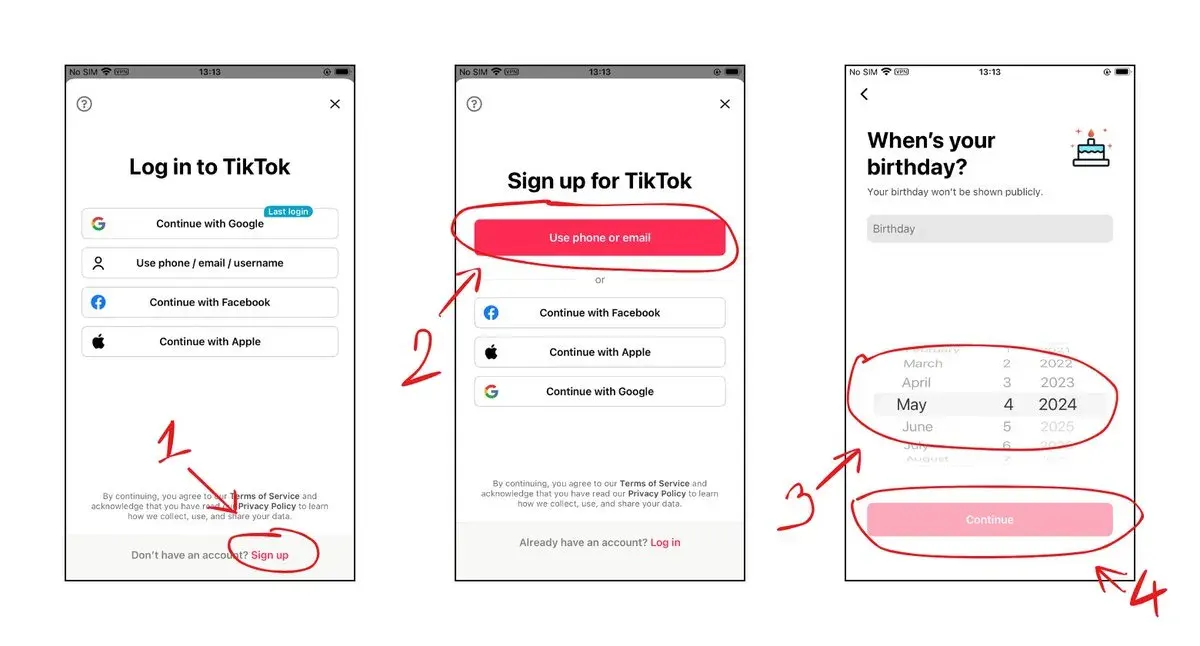
Now that your device is fully configured with a clean fingerprint, correct region settings, and a reliable VPN, you’re ready to create your TikTok accounts. This step requires patience rushing it is one of the fastest ways to get flagged.
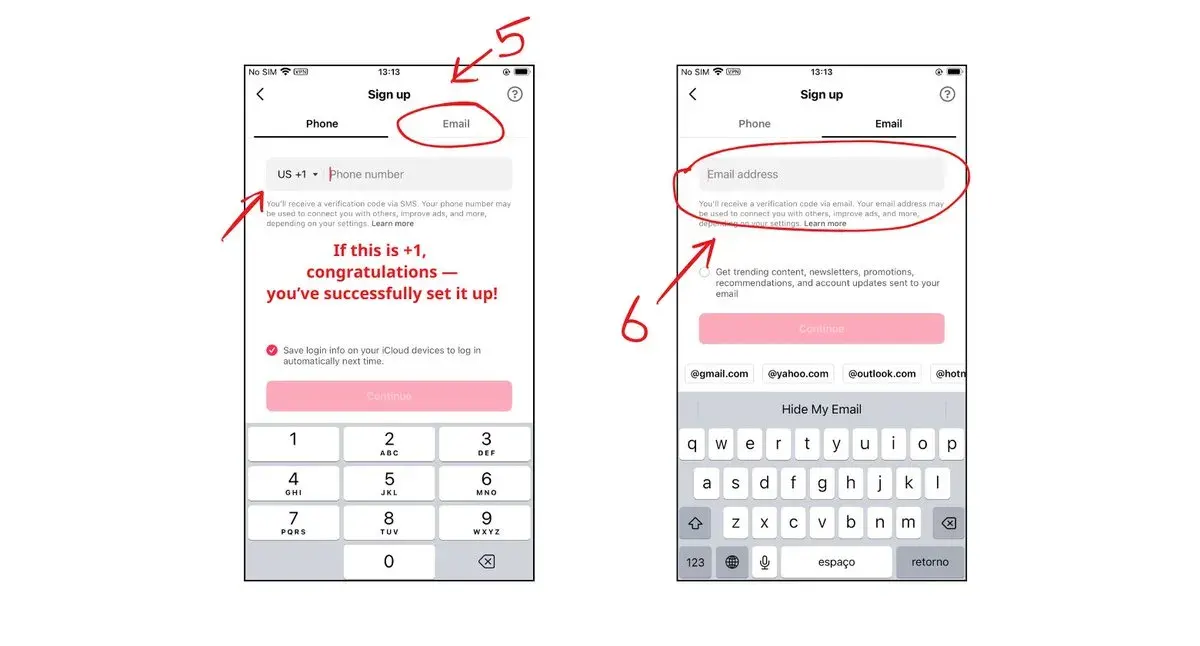
How to do it
- Open TikTok (which you downloaded from the correctly regionalized App Store in Step 4).
- Sign up using the same fresh Gmail you created in Step 3 for your first account.
- Complete the sign-up process set your date of birth (make sure the age is 18+), choose a username, etc.
- For additional accounts, create new separate Gmail addresses following the same process from Step 3. Don’t use the same Gmail for multiple TikTok accounts.
Account limits per device
Only create 2–3 TikTok accounts maximum per device. Going beyond this significantly increases the chance of TikTok detecting spam behavior on that device, which can lead to all accounts on the phone getting flagged at once.
Start with just 1–2 accounts. Don’t immediately max out. Create your first account, start posting, and wait to see if your videos gain traction and views are flowing normally. Only create the next account once you’ve confirmed the first one is healthy and not shadowbanned.
Adding a third account should only happen after your existing accounts are established and performing well. If your first account is already struggling with reach, adding more accounts on the same device will only make things worse.
Warm up each account like a real user
This is crucial. TikTok’s algorithm monitors new account behavior closely. An account that signs up and immediately starts posting content without any normal user activity looks like a bot. For each new account, you need to simulate real human behavior:
- Scroll the For You Page (FYP) for 15–30 minutes after creating the account. Watch videos fully, don’t just skip through them.
- Like and comment on a few videos keep it natural, don’t spam generic comments like “nice” or emojis on dozens of posts.
- Follow a handful of accounts in your niche or target content area.
- Don’t post anything on the first day. Just use the app like a normal person who just downloaded TikTok for the first time.
- After 1–2 days of casual usage, you can start posting your first video. Continue mixing in regular browsing behavior between posts.
The goal is to make each account indistinguishable from a genuine new user. TikTok’s detection isn’t just about device signals, it also analyzes behavioral patterns. An account that only posts and never watches is an obvious red flag.
Final Notes
Before you start running your farm, keep these rules in mind at all times. These aren’t optional best practices they’re the difference between accounts that grow and accounts that get killed.
Keep your VPN active at all times
Never open TikTok without your VPN or proxy connected. Not even once. If TikTok detects your real IP address even for a brief moment it logs that location data. A sudden jump from a US IP to a Vietnamese IP and back is an immediate red flag that can trigger a shadowban or account review. Make it a habit: VPN on first → open TikTok. Close TikTok first → disconnect VPN. This applies to every single session, on every device, no exceptions.
Simulate real user behavior at all times
TikTok tracks how you interact with the app, and unnatural patterns will get you flagged:
- Don’t rapid-fire likes, saves, or comments. If you like 50 videos in 2 minutes or drop comments on dozens of posts back-to-back, TikTok’s system will flag that as bot behavior. Space out your interactions the way a normal person would a like here, scroll for a bit, maybe a comment there.
- Don’t do the same repetitive action in bulk. Saving 20 videos in a row, following 30 accounts in a row, or commenting the same phrase on multiple posts all of these trigger automated spam detection.
- Mix passive and active behavior. Watch some videos without interacting, like a few without commenting, comment occasionally keep the pattern random and human-like.
Good luck guys. 🫡